

Quote by room
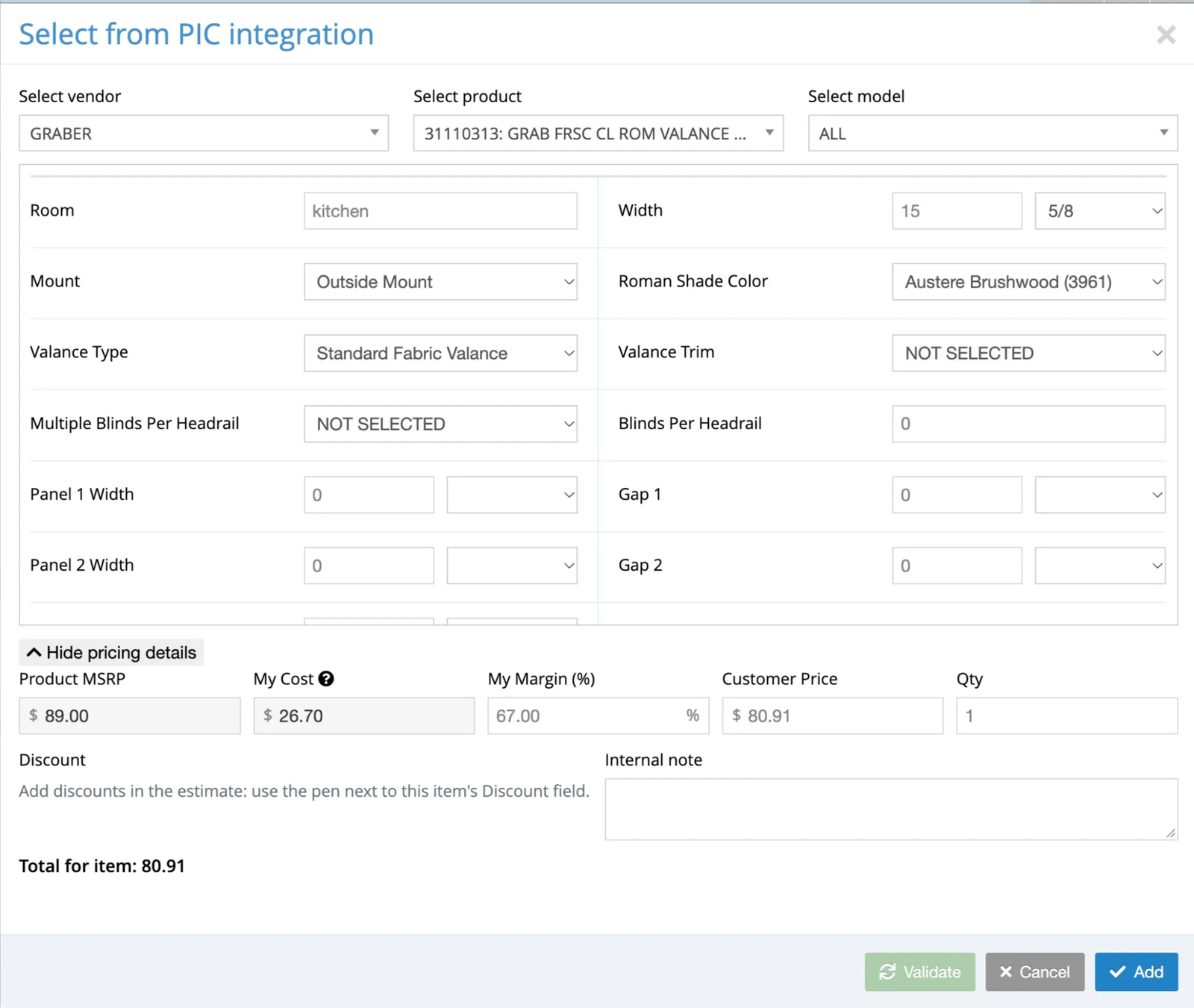
Name rooms such as Kitchen and Living Room, then group the products for each room. Designers and sales consultants get a clear structure, and customers can follow the quote easily.
Window covering businesses
Manage leads, build detailed quotes, collect signatures and deposits, submit PIC vendor orders, and schedule installations in Pocomos.
For businesses selling and installing blinds, shades, shutters, and other window coverings.
Configure products
PIC vendors, products, and models
Get approved
Online signatures and deposits
Submit orders
Send to vendors from Pocomos
Schedule installs
Sales appointments to field work
Pocomos + PIC
Bring your PIC products into the estimate, give the customer a simple way to approve and pay, then submit the order to the right vendors. Your team keeps working from the quote it already created.
Start the customer's window treatment estimate in Pocomos.
Choose the vendor, product and model, then configure the item.
Check availability and get real-time cost, price and margin.
The customer signs the estimate and pays the required deposit.
Your team creates the PIC quote and submits the order directly from Pocomos.
Team-initiated submissionThe order is created in Pocomos and routed to the appropriate vendors.
Quote and order submission is initiated by your team in Pocomos. Signing and paying a deposit does not automatically place an order.
This sequence illustrates one team's process, not an enforced workflow.
See it in Pocomos
Explore the actual screens, from product configuration and customer approval to vendor orders and scheduled work.
Choose the vendor, product, and model. Configure the options and validate the product before sending the estimate.
Product screenshots show example data.
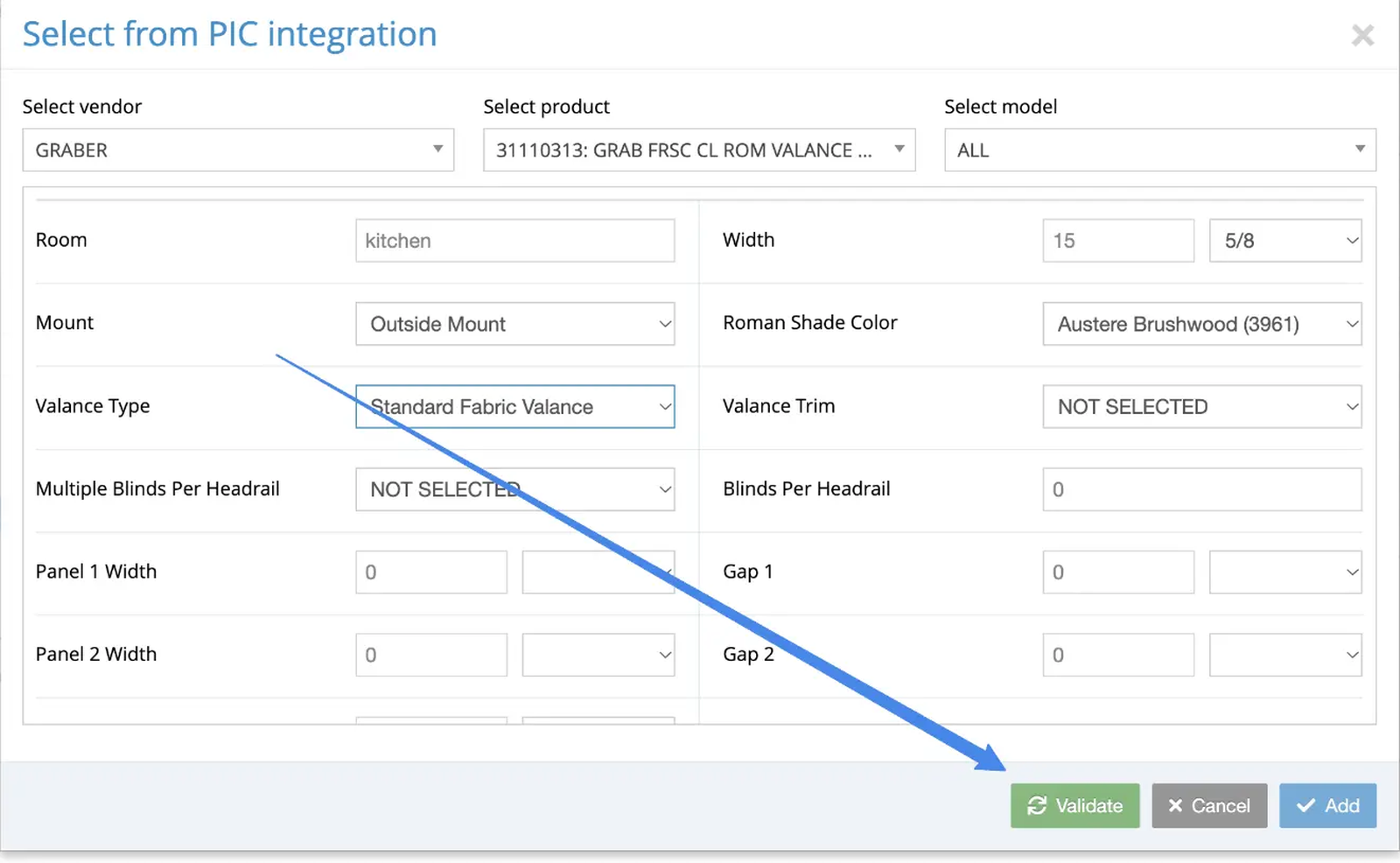
Set the room, measurements, mount, and product options, then validate the item.
Efficiency
A PIC product can have a lot of options. Keep the quote clear for your customer and reuse the configuration work your team has already done.
Name rooms such as Kitchen and Living Room, then group the products for each room. Designers and sales consultants get a clear structure, and customers can follow the quote easily.
Duplicate an individual PIC item when you need the same configuration again, without repeating every option.
Duplicate a whole group of PIC items when a room or section of the quote needs to be reused together.
Duplicate an entire quote when you need to reuse the complete quote structure and its configured products.
Growth
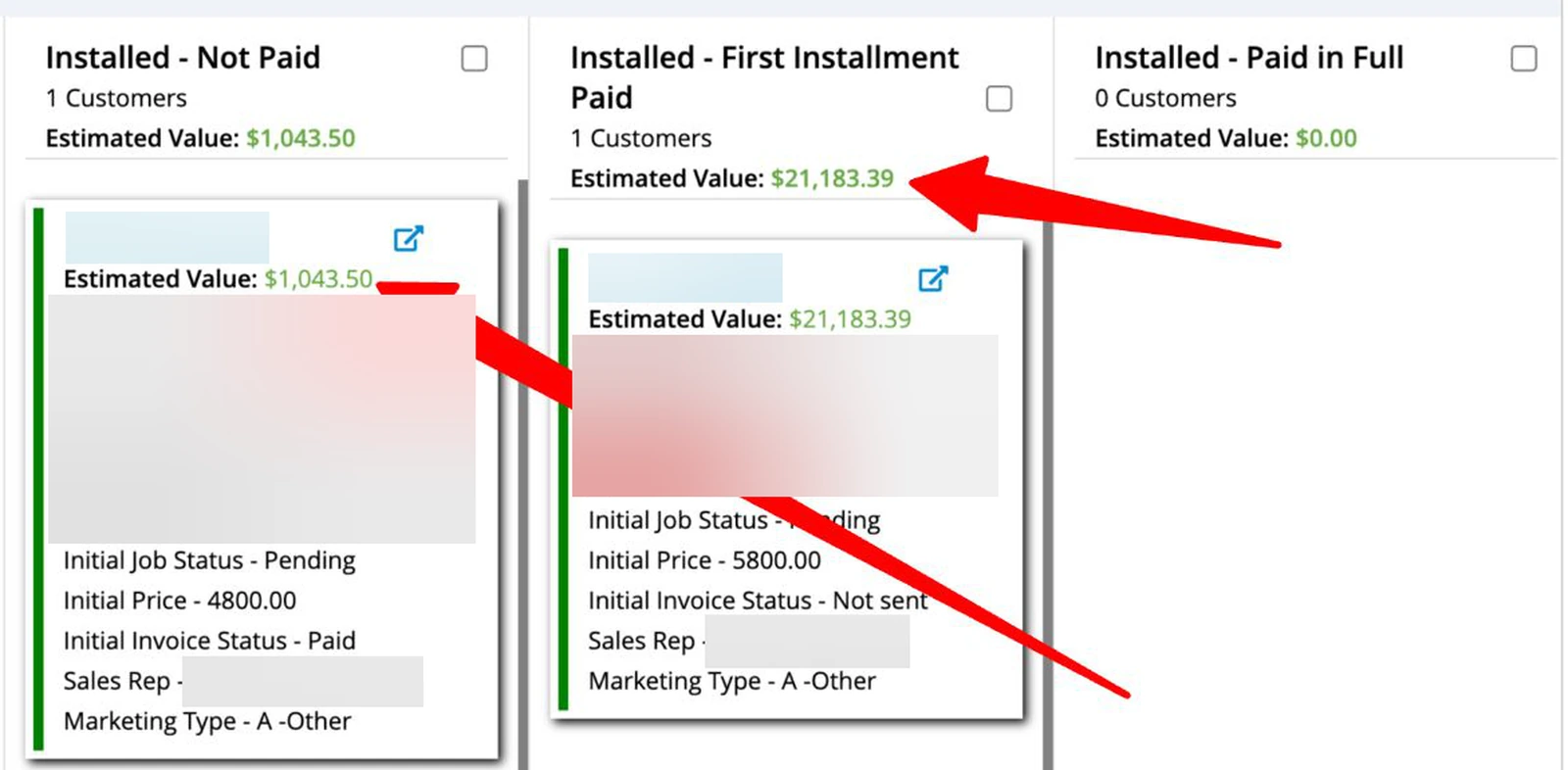
Your customer record, estimate, and sales pipeline stay connected. Follow prospects through your sales process and see pricing from signed estimates on the pipeline card.
Efficiency
The quote is just one part of the job. Keep appointments, photos, tasks, payments, and customer history available to the people doing the work.
Keep contacts, notes, photos, messages, estimates, invoices, payments, and account activity together.
Explore featureSchedule work across multiple days and move appointments with drag-and-drop scheduling.
Explore featureCreate and edit estimates, see appointments, attach photos, complete jobs, send invoices, and collect payments.
Explore featureAssign follow-ups to yourself or a coworker. Add comments and keep track of tasks across your team and branches.
Explore featureRequire a deposit on an estimate and let the customer pay online after approving and signing.
Explore featureReview sales, financials, production, marketing, and vendor performance from the same system.
Explore featureGrowth
Follow leads through the sales pipeline. Signed-estimate pricing appears on the customer record and pipeline card.
Explore featureTrack estimates by status, date, and contact type. Send quotes to leads or existing customers by email and text.
Explore featureAutomate email and text communication, have two-way conversations, and connect marketing workflows through Klaviyo.
Explore featureUse SendJim to send direct mail to leads, customers, or neighbors around existing customers, manually or through automation.
Explore featureConnected tools
PIC handles your product configuration and vendor ordering connection. Your accounting, calendar, and marketing can work alongside the same customer workflow.
Learn about PIC for retailersCommon questions
Yes. Pocomos supports window covering businesses with customer and lead management, sales pipelines, estimates, online signatures, deposits, appointment scheduling, mobile tools, and reporting. The PIC integration adds product configuration and vendor ordering to that workflow.
Add a PIC item while building an estimate in Pocomos. Select the vendor, product, and model, configure the product, validate availability, and review real-time cost, pricing, and margins. Your team can then create a PIC quote and submit the PIC order directly from Pocomos. The order is created in Pocomos and sent to the appropriate vendors.
Yes. Send an estimate by email or text, require a deposit, and let the customer approve and sign online. When a deposit is required, the customer is directed to the payment page after approval so they can pay right away.
The customer approval and payment steps are separate from vendor order submission. Your team creates the PIC quote and submits the PIC order from Pocomos when it is ready to be ordered.
Yes. Use drag-and-drop scheduling for sales consultations and installations, including work across multiple days. A signed estimate can be converted to a job, and the mobile app gives your field team access to appointments, customer information, photos, and payments.
Yes. The QuickBooks Online integration is a one-way sync from Pocomos for customers, invoices, and payments. Pocomos also has a one-way Google Calendar connection so owners can see their Pocomos appointments in Google Calendar.
The PIC item selector brings in the vendors, products, and models available through your PIC configuration. During the demo, we can review the vendors you use, your product setup, and the ordering process with your team.
Bring a sample quote and your current sales-to-installation workflow to a demo. We will walk through product configuration, customer approval, deposits, vendor submission, and scheduling, then confirm the plan, optional add-ons, and PIC setup requirements for your business.
Yes. Name rooms such as Kitchen and Living Room, then group the products for each room in the quote. This gives designers and sales consultants a clear structure and makes the quote easier for customers to follow.
Yes. Duplicate an individual PIC item to reuse its configuration, duplicate a whole group of items, or duplicate an entire quote. Each level helps you reuse the detail you need without repeating every option.
See your own workflow
Show us how you sell, order, and install today. We’ll demonstrate PIC configuration, signatures, deposits, vendor ordering, and scheduling for your team.
We’ll confirm your plan, optional add-ons, and PIC setup requirements during the demo.